
Quick Start
The first two steps are the same whichever platform you work in; after that, pick your platform below.
Get your Soterre API token
In Soterre open your user profile: Edit User Profile → Account and copy the API token. One Soterre account can cover both Qlik and Power BI; use the same token for both.
Connect the extension to Soterre
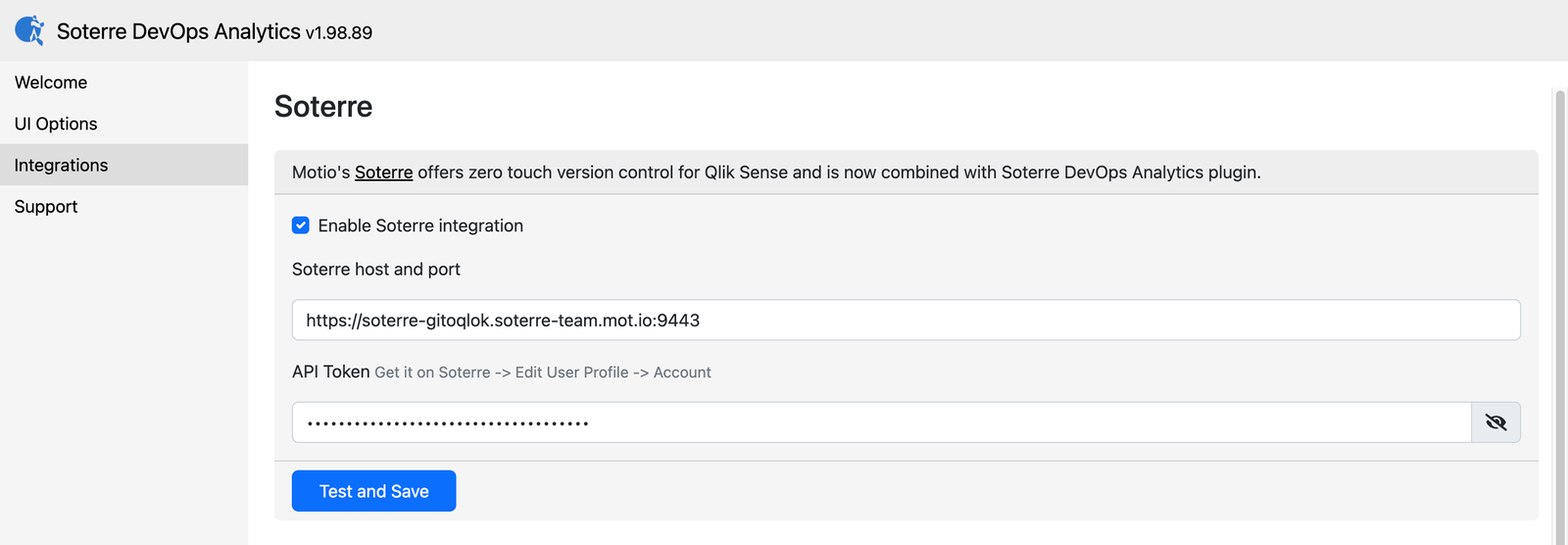
Open the extension's Options page → Integrations. Tick Enable Soterre integration, enter the Soterre host and port (for example https://soterre.example.com:9443) and the API Token, and click Test and Save.
Open an app and click the icon
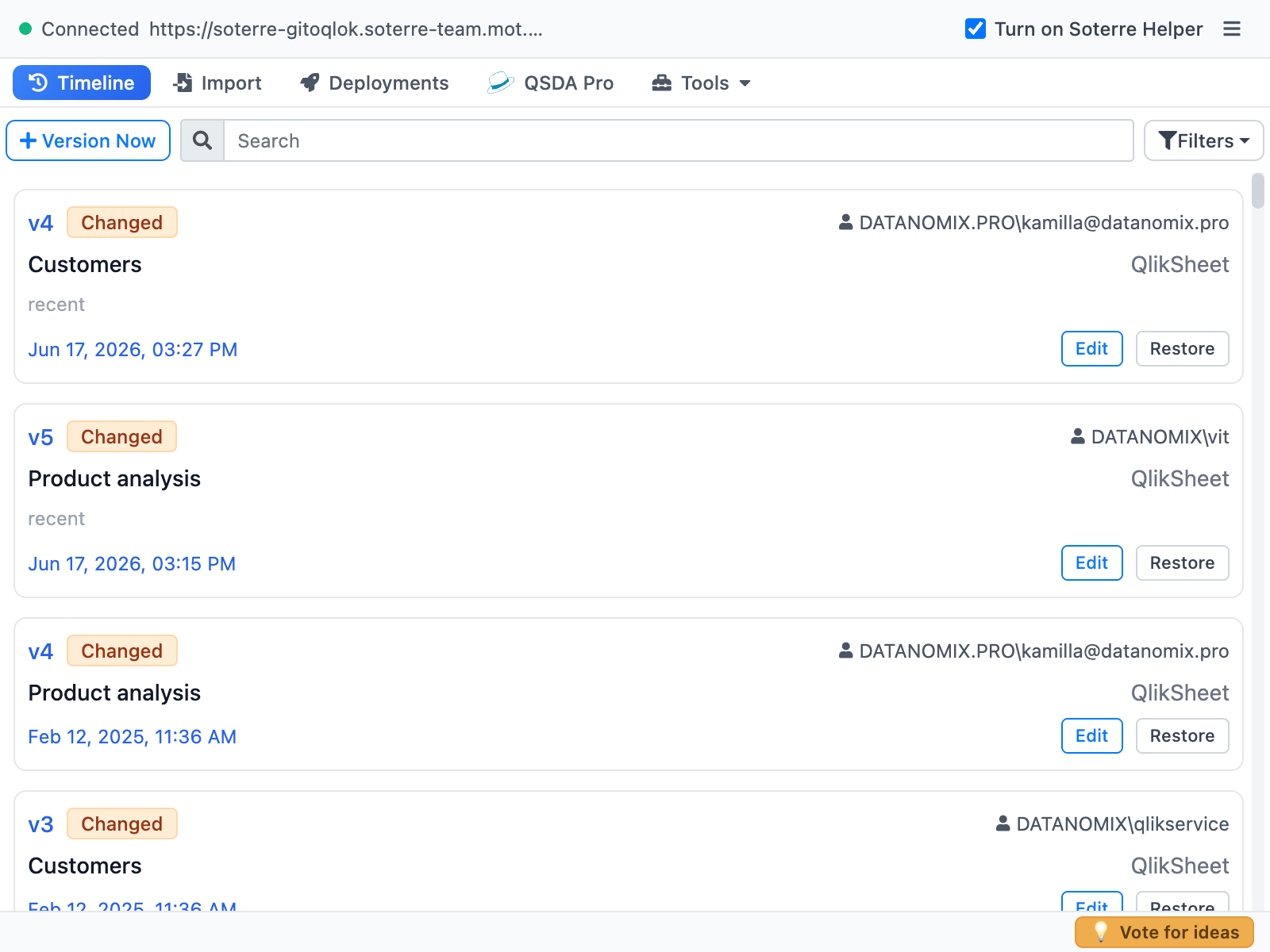
Open an app in Qlik Sense or Qlik Cloud and click the extension icon. The popup opens on the Timeline tab, and the header shows Connected with your Soterre server.
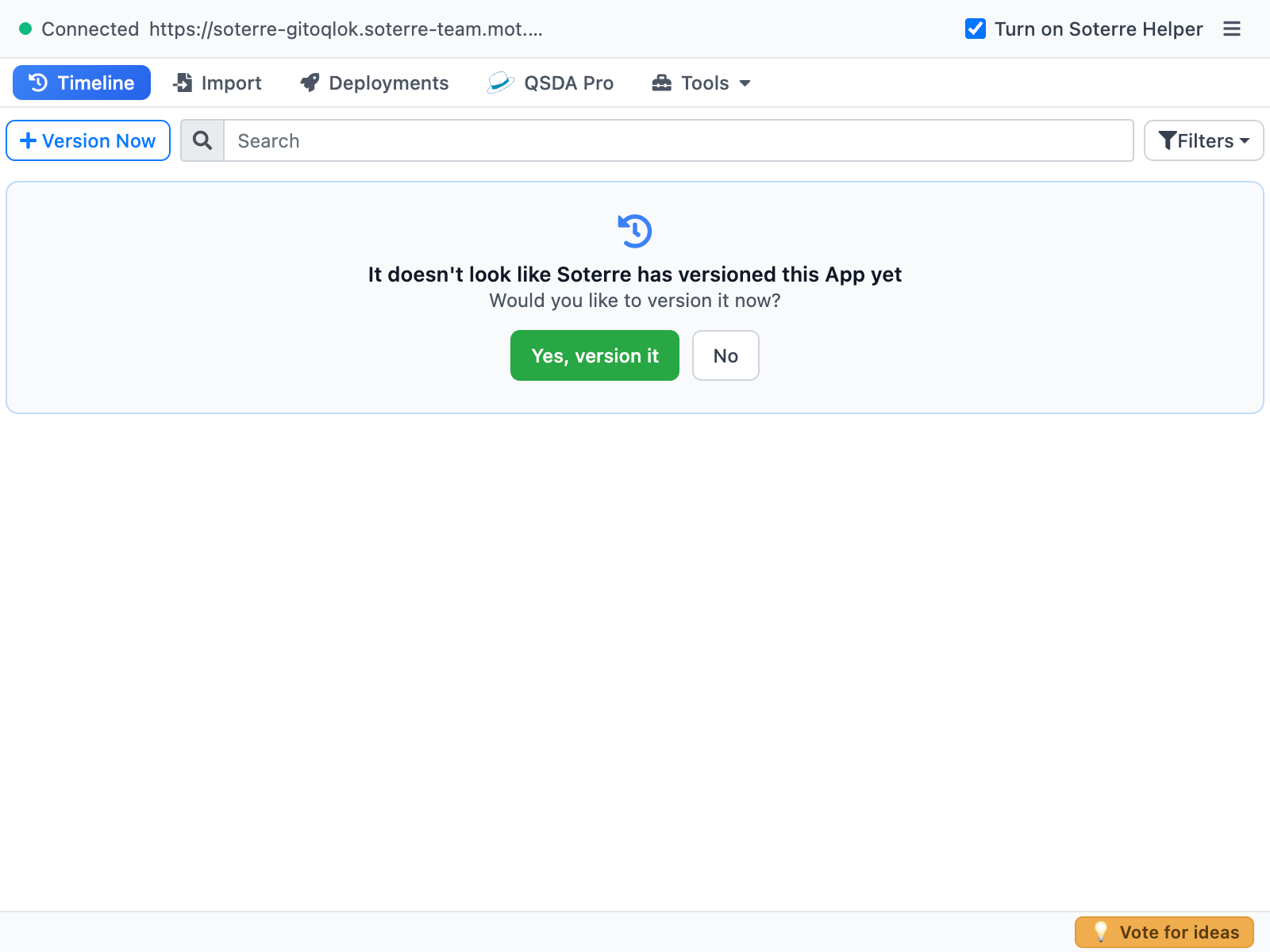
If Soterre already versions the app, its change events are listed. If not, the tab says It doesn't look like Soterre has versioned this App yet and offers to version it:
Version it
Click Yes, version it (or + Version Now at any later time). Soterre runs Find Changes on the app and the first version appears on the timeline.
Explore
- Filter the timeline by Tags, Artifact or User Id, or search it.
- Edit a change event to add a comment, tags or a ticket reference.
- Restore brings the app back to that version.
- Turn on Soterre Helper in the header and open a sheet: the green helper button offers Time machine and Diff viewer over the Soterre versions.
Next: Timeline · Deployments · Soterre Helper
Open a report and click the icon
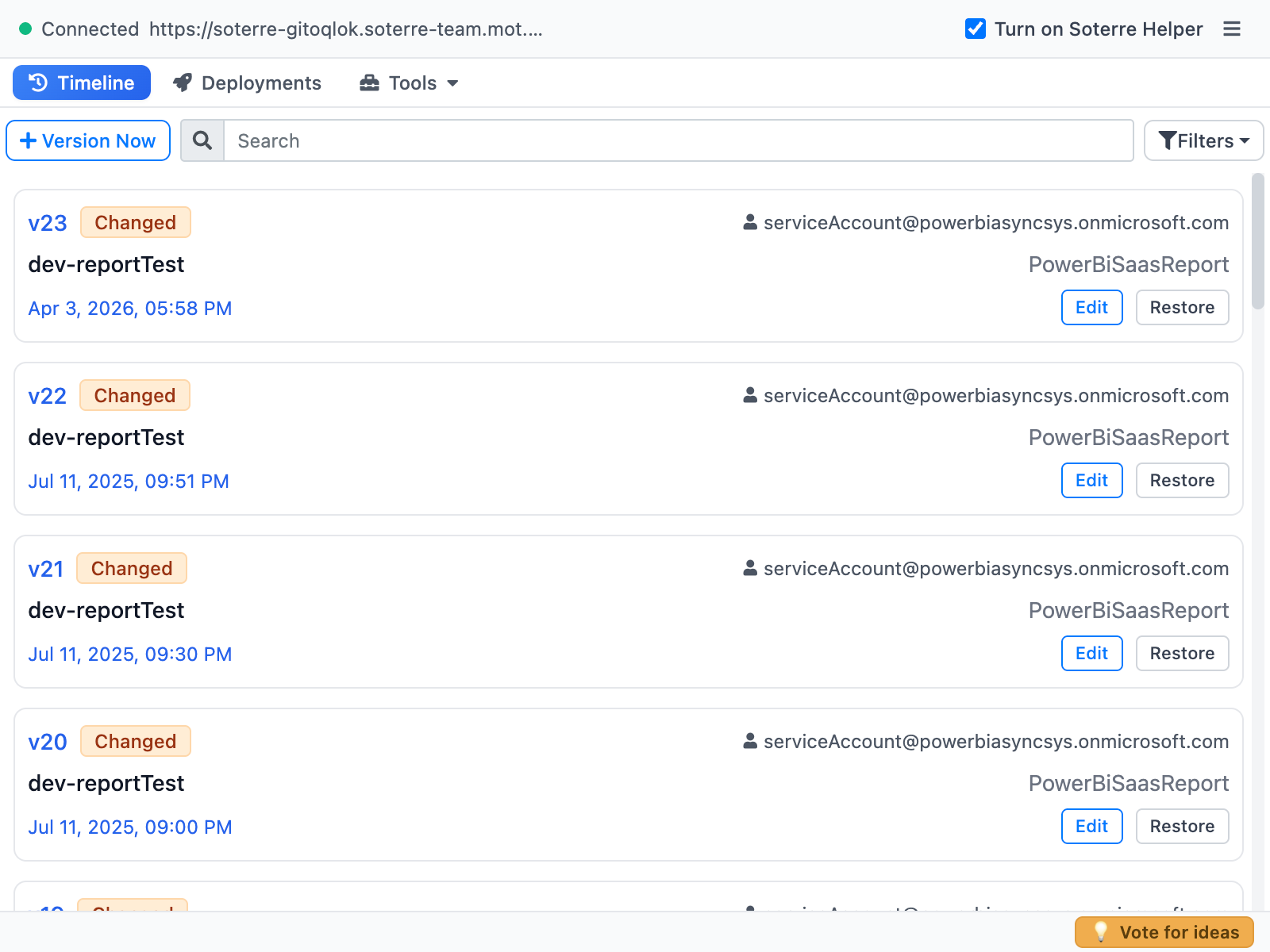
Open a report in the Power BI service (app.powerbi.com) and click the extension icon. The popup opens on the Timeline tab with Timeline, Deployments and Tools in the tab bar, and the header shows Connected with your Soterre server.
Version it
If Soterre has not versioned the report yet, the tab offers Yes, version it; otherwise click + Version Now whenever you want to record the current state. Soterre runs Find Changes on the report and the new events appear on the timeline.
Explore
- Edit a change event to add a comment, tags or a ticket reference; Restore brings the report back to that version.
- Tools → Lifecycle Insights summarises how the report is developed and used.
- Turn on Soterre Helper in the header: the report toolbar gains Global Search and Diff Editor.
Next: Timeline · Deployments · Lifecycle Insights
Where to go next
- User Interface Overview — the popup, the side panel and the icon menu
- Feature Availability — which feature works on which platform