
UI Options
Open the Options page → UI Options.
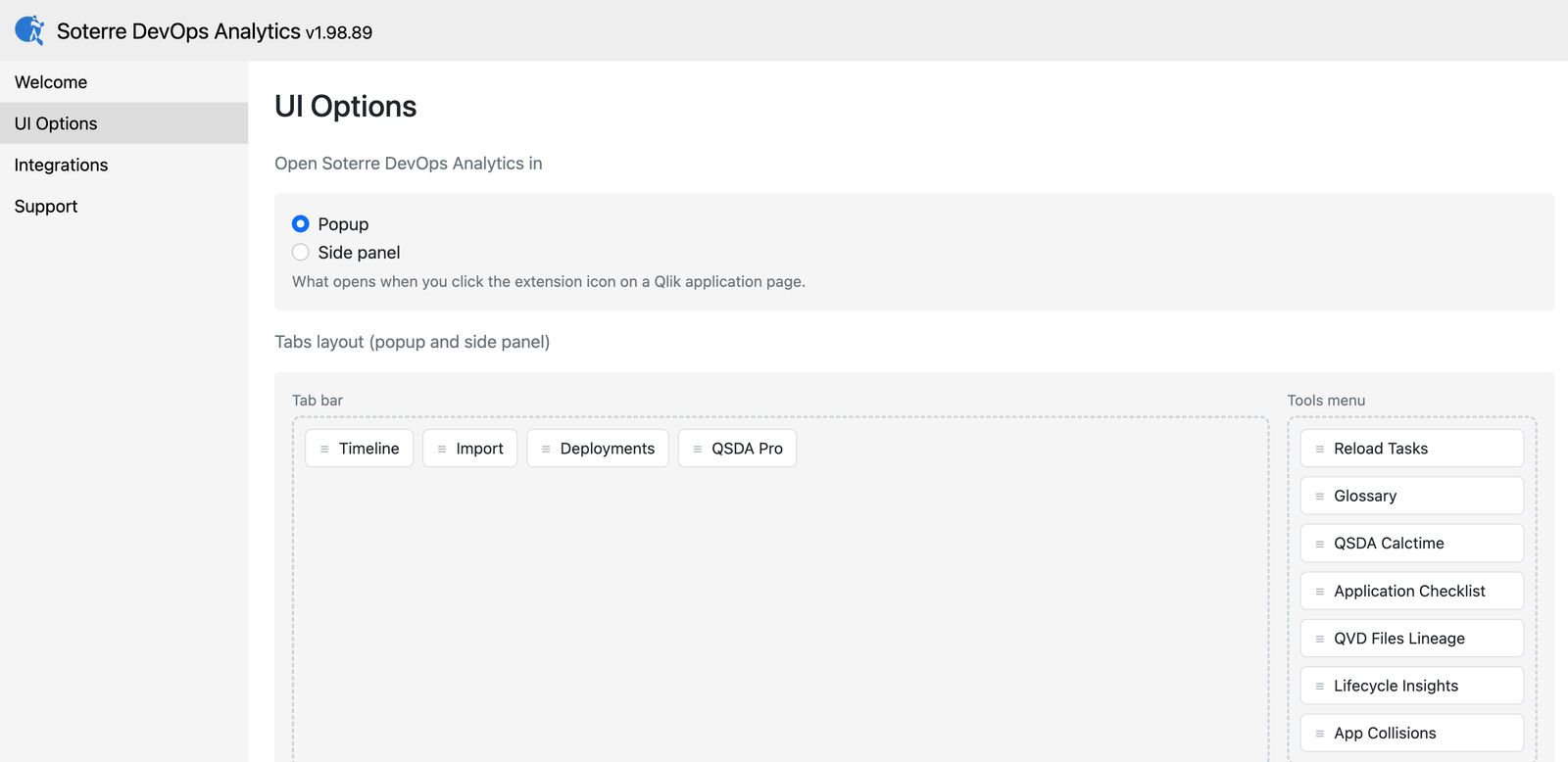
Open in
What happens when you click the extension icon on an app or report page:
- Popup (default) — an 800×600 window that closes when you click elsewhere.
- Side panel — the Chrome side panel next to the page. It stays open while you work and can be resized.
The other host is always one right-click away: the icon menu offers Open Side Panel or Open Popup, and the same setting appears there as Use Side Panel by default.
Tabs layout (popup and side panel)
Drag the tabs to reorder them or move them between the Tab bar and the Tools menu. The layout applies to both hosts; tabs unavailable on the current page (for example Reload Tasks on Qlik Cloud or QVD Files Lineage on Power BI) are hidden automatically.
Each tab card carries three small environment badges — SaaS (Qlik Cloud), Enterprise (Qlik Sense client-managed) and PowerBI — so you can see where a tab will actually appear before you arrange the layout. A grey badge means the tab is not available in that environment; hover it for the full name. The same grid is in Feature Availability.
Default layout: Timeline, Import, Deployments, QSDA Pro in the bar; Reload Tasks, Glossary, QSDA Calctime, Pre-deployment Checklist, QVD Files Lineage, Lifecycle Insights, App Collisions in the Tools menu.
Changes are saved immediately; reopen the popup or side panel to see them.