
User Interface Overview
1. The main UI: popup or side panel
On a Qlik app page (overview, sheet, Data Load Editor), a Qlik Cloud Script or a Power BI report, clicking the extension icon opens the main UI. The same UI can be shown in two hosts:
| Host | How it opens | When to use it |
|---|---|---|
| Popup (default) | Click the icon. Closes when you click outside it | Quick look at the timeline, Version Now, a deployment |
| Side panel | Right-click the icon → Open Side Panel, or set Use Side Panel by default | Keeps the timeline, Lifecycle Insights or QVD lineage open while you work |
Switch the default host on the Options page → UI Options → Open in, or with Use Side Panel by default in the icon menu.
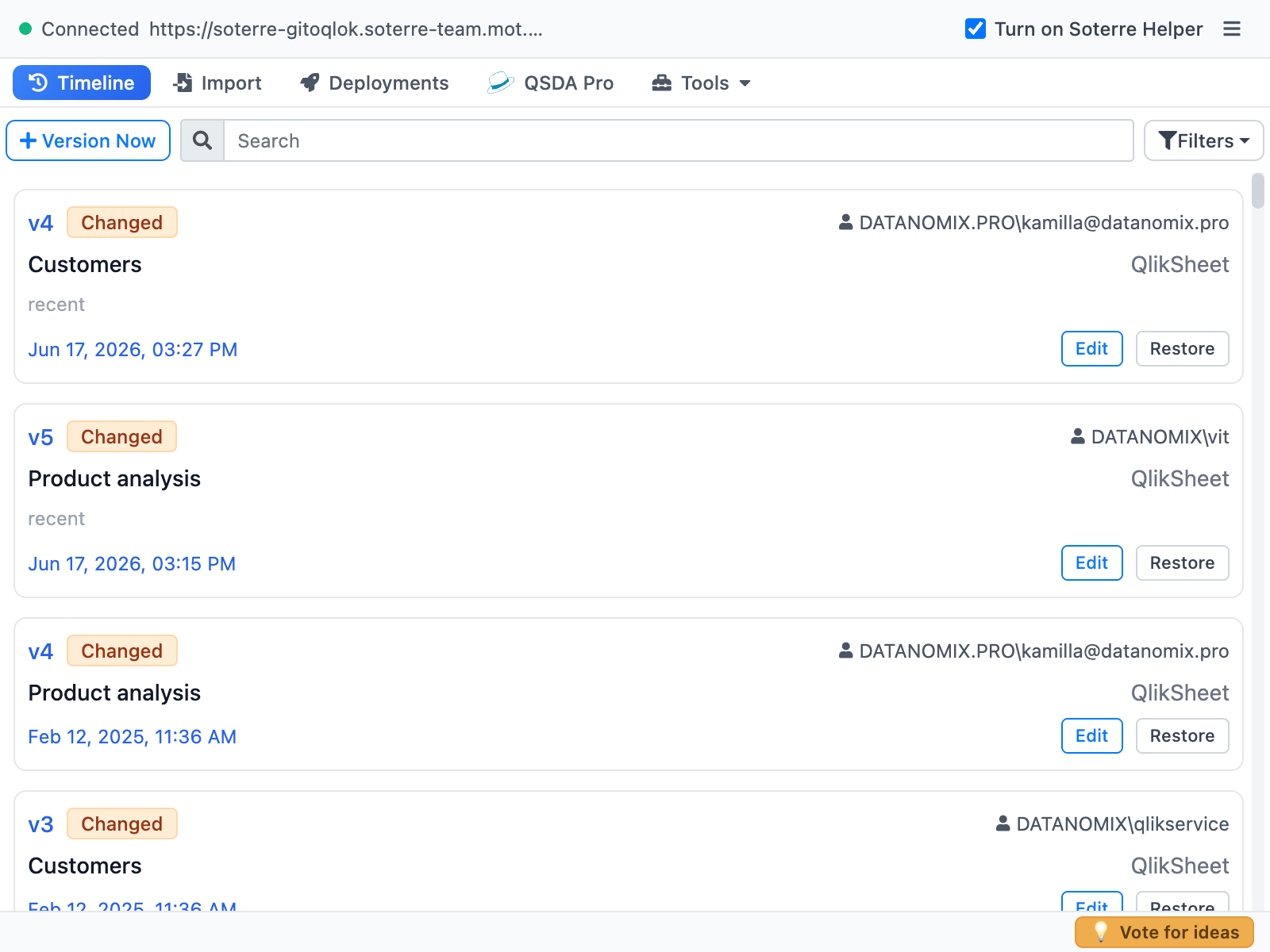
The popup on a Qlik app
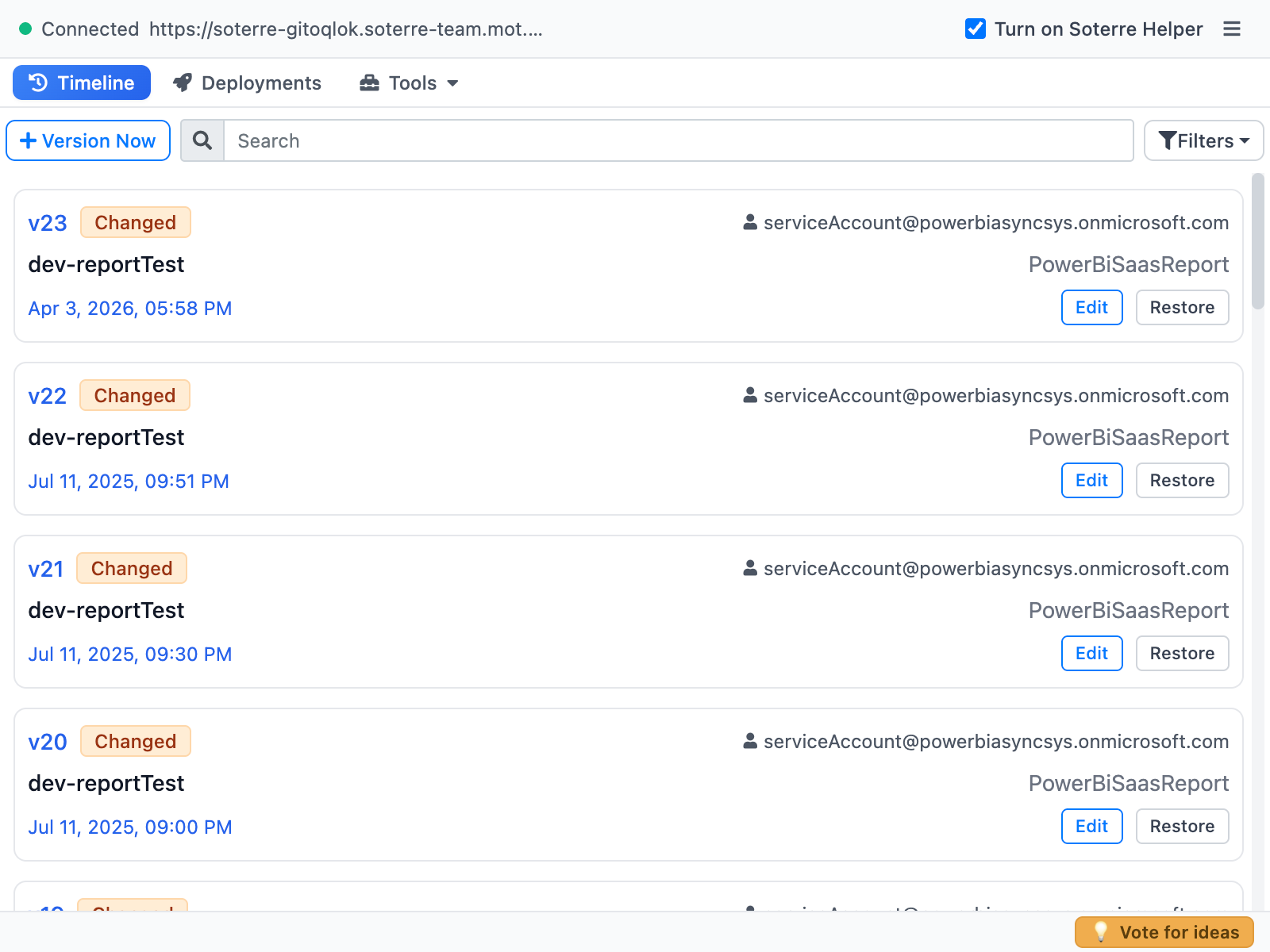
The popup on a Power BI report
Header
- Connected with the Soterre server URL — the state of the Soterre connection. A red state means the server cannot be reached or the token is invalid; the Options page link fixes it.
- Turn on Soterre Helper (popup only) — switches the Soterre Helper on or off.
- ☰ menu — Options, Download Logs, Help, Get help from support team, Join community.
Tabs and the Tools menu
Tabs that do not apply to the current page are hidden automatically, so the bar is shorter on a Power BI report than on a Qlik app:
| Tab | Qlik app | Power BI report |
|---|---|---|
| Timeline | ✓ | ✓ |
| Deployments | ✓ | ✓ |
| Import | ✓ | – |
| QSDA Pro | ✓ | – |
| Tools → Pre-deployment Checklist | ✓ | ✓ |
| Tools → Lifecycle Insights | ✓ | ✓ |
| Tools → Global Search | ✓ | ✓ |
| Tools → QVD Files Lineage | ✓ | – |
| Tools → App Collisions | ✓ | – |
| Tools → QSDA Calctime | ✓ | – |
| Tools → Reload Tasks | Enterprise only | – |
| Tools → Glossary | Qlik Cloud only | – |
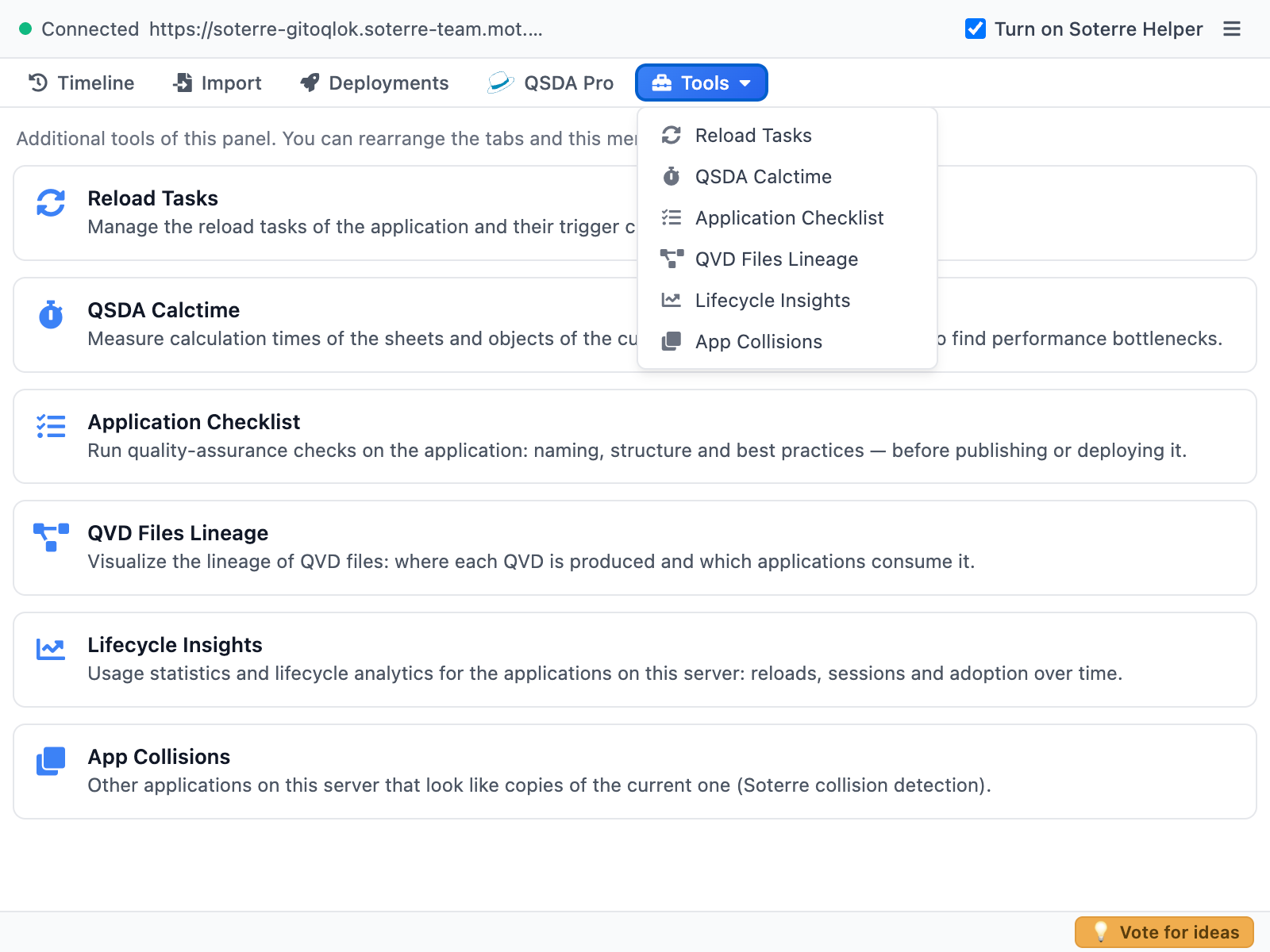
Reorder the tabs or move them between the bar and the Tools menu on the Options page → UI Options.
Status bar
The bottom bar shows the progress of long operations and the Vote for ideas button that opens the public feature roadmap.
2. The Qlik hub popup
On the Qlik hub the icon opens a compact popup with the Soterre Helper switch, Help and Options. Open an app to use the main UI; on the Qlik Cloud hub the Helper also adds Global Search to the Create new app dialog (see Global Search).
3. Soterre Helper: buttons inside the BI tool
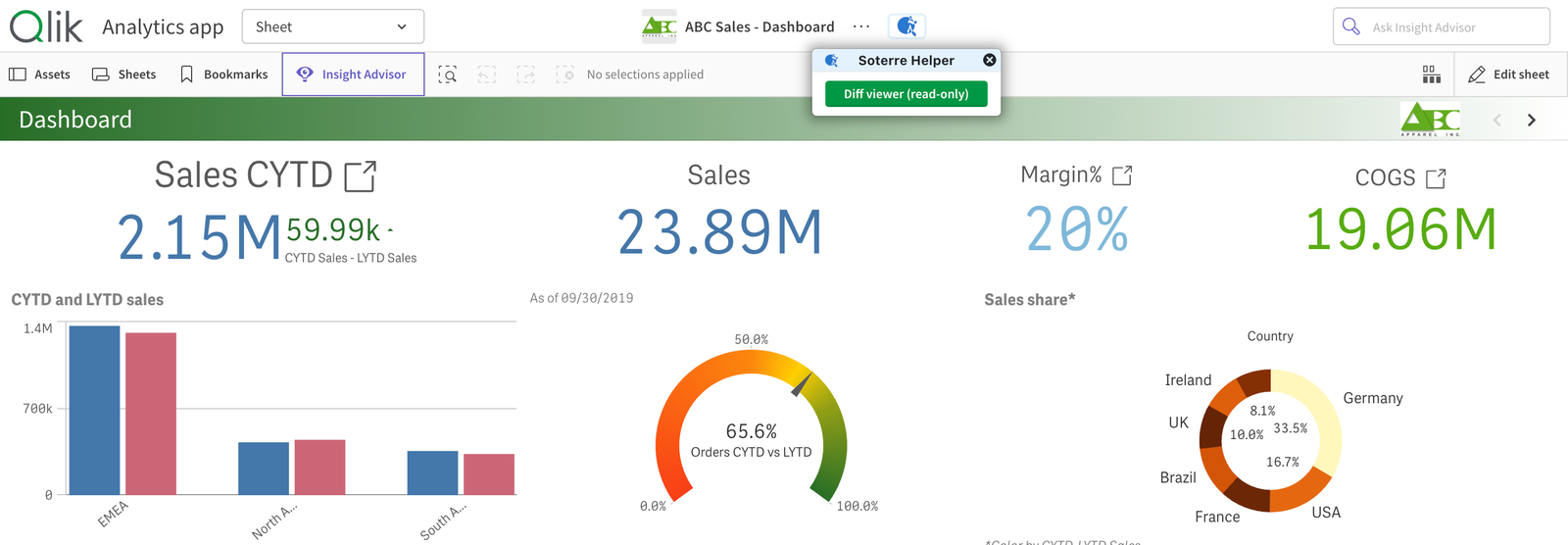
With the Helper on, the extension adds controls to the pages themselves.
In Qlik — an Pre-deployment Checklist button on the app overview, a green helper button on sheets with Time machine, Diff viewer and Set a thumbnail, Toggle Theme and Diff Editor in the Data Load Editor, Global Search and Ask AI in the measure editor, QVD link icons in the script, and highlighted master items.
In Power BI — Global Search and Diff Editor in the report toolbar, an Pre-deployment Checklist button in the report editor, and Global Search in the data model view.

See Soterre Helper.
4. The extension icon menu
Right-click the icon (or click ⋮ next to it in the Extensions menu):
| Item | What it does |
|---|---|
| Turn on Soterre Helper | Same as the Helper switch |
| Use Side Panel by default | Choose the host for the icon click |
| Open Side Panel / Open Popup | Opens the host the icon click does not open |
| Tools ▸ Pre-deployment Checklist | Side panel on the checklist |
| Tools ▸ QVD Files Lineage | Side panel on the QVD lineage (Qlik app pages) |
| Tools ▸ QSDA Calctime | Side panel on QSDA Calctime (Qlik app pages) |
| Tools ▸ Lifecycle Insights | Side panel on Lifecycle Insights |
| Tools ▸ Global Search | Side panel on Global Search with an empty query |
| About ▸ Download Logs / Terms of Service / Privacy Policy | Logs for support and the legal pages |
See Extension Icon Menu.
Separate pages
Global Search started from the Qlik hub's Create new app dialog opens in its own side panel page (everywhere else it is a tab of the main UI); the Options page opens in a tab.