
Diff Viewer
The Diff Viewer shows two versions next to each other — the live one on the left, a Soterre version on the right — with the differences highlighted, and lets you pull individual changes back into the live object.
Everywhere it appears the controls are the same: a version timeline along the top to choose what to compare with, highlighted objects you can click for View/Merge Changes, Apply Version to take the whole right-hand version, and Cancel to leave the artifact untouched. Soterre Helper must be on.
In Qlik the viewer opens in two places: on a sheet (charts) and in the Data Load Editor (script sections).
Sheets
Open the viewer
Open a sheet, click the green helper button next to the app name and choose Diff viewer.
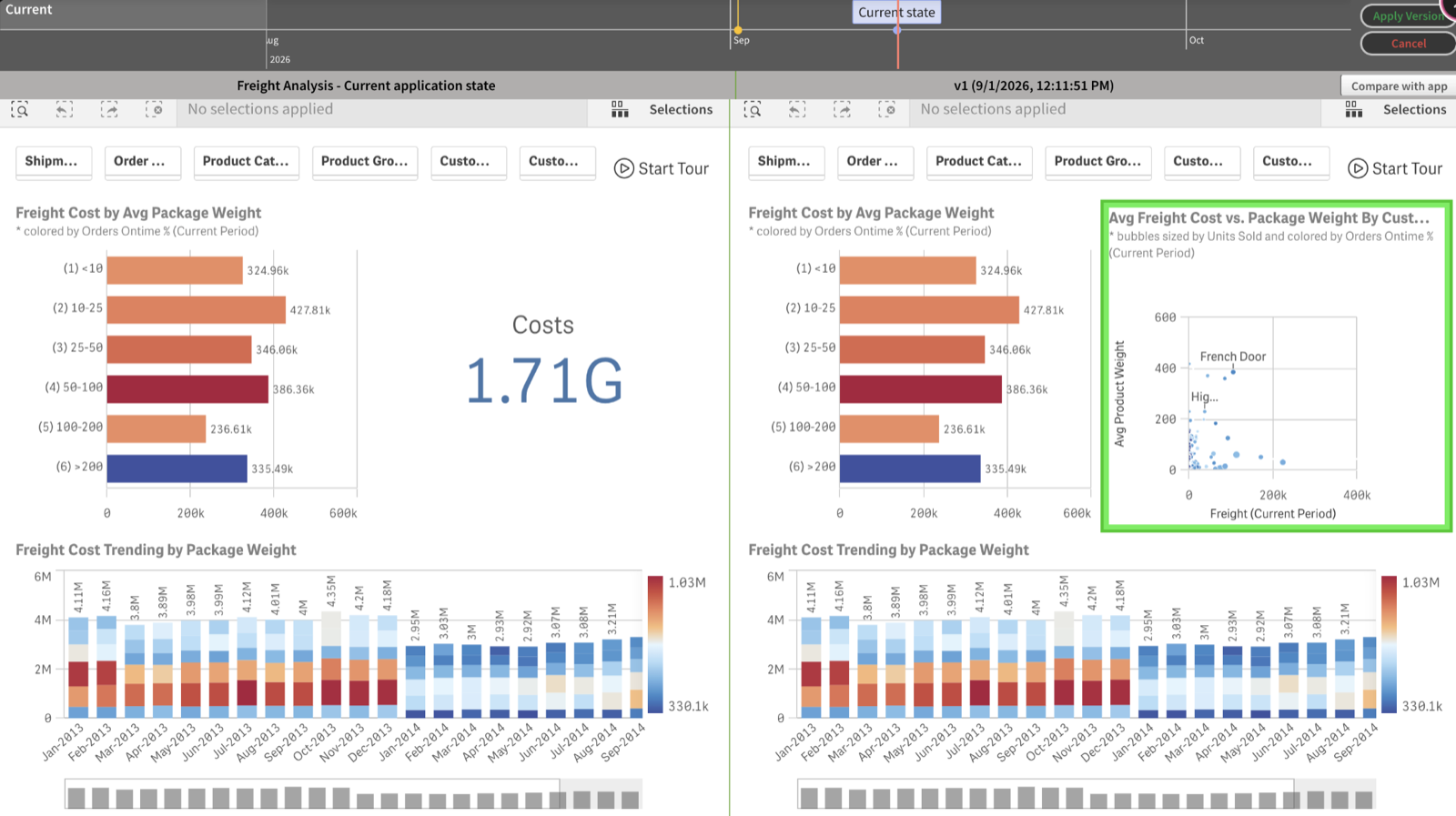
Pick what to compare with
Choose the version on the timeline at the top — the right-hand pane switches to the sheet as it was at that point.
Compare with app: borrow a sheet from anywhere
Compare with app (top right) is not limited to versions of the app you have open. Point it at any other application versioned in Soterre and pick any sheet from it: that sheet is then rendered in the right-hand pane against the data of the app you are in.
So you can put a colleague's sheet, a sheet from a template app, or the published copy of your own app next to your current one and see how it actually behaves on your data — before deciding whether to merge it in. Combined with Apply Merge in the next step, it is how you reuse a chart someone else built without leaving your app.
Review and merge
Charts that differ are outlined. Click one to open View/Merge Changes: a table of the changed properties with check boxes (or a JSON split editor with Revert chunk arrows). Apply Merge applies the selected changes to the live chart; Apply Version applies the whole right-hand version to the sheet.
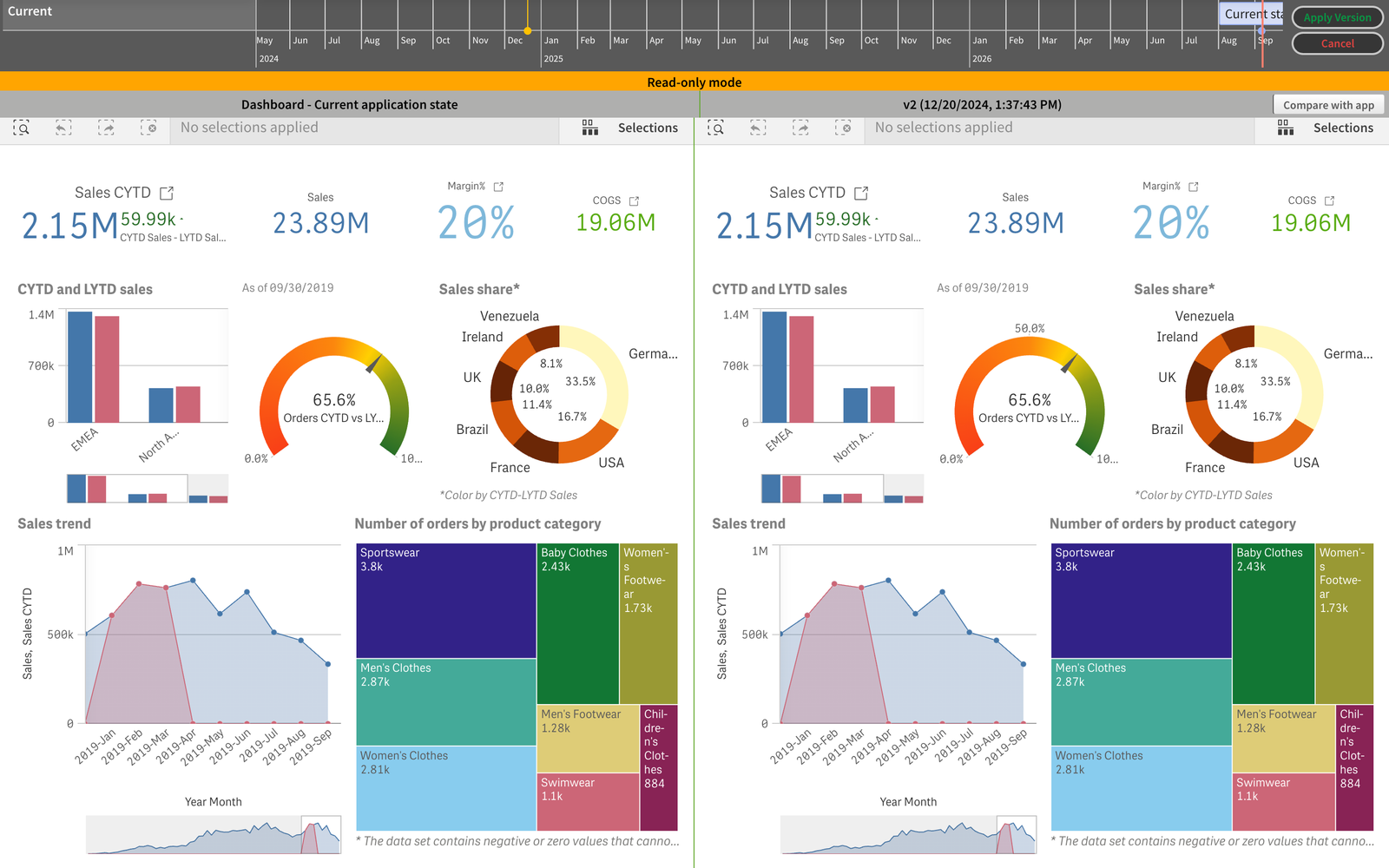
On a published sheet the viewer opens in read-only mode (orange banner): you can compare, but not merge or apply. Opening it takes about a minute, because the extension creates a temporary copy of the sheet to render the comparison.
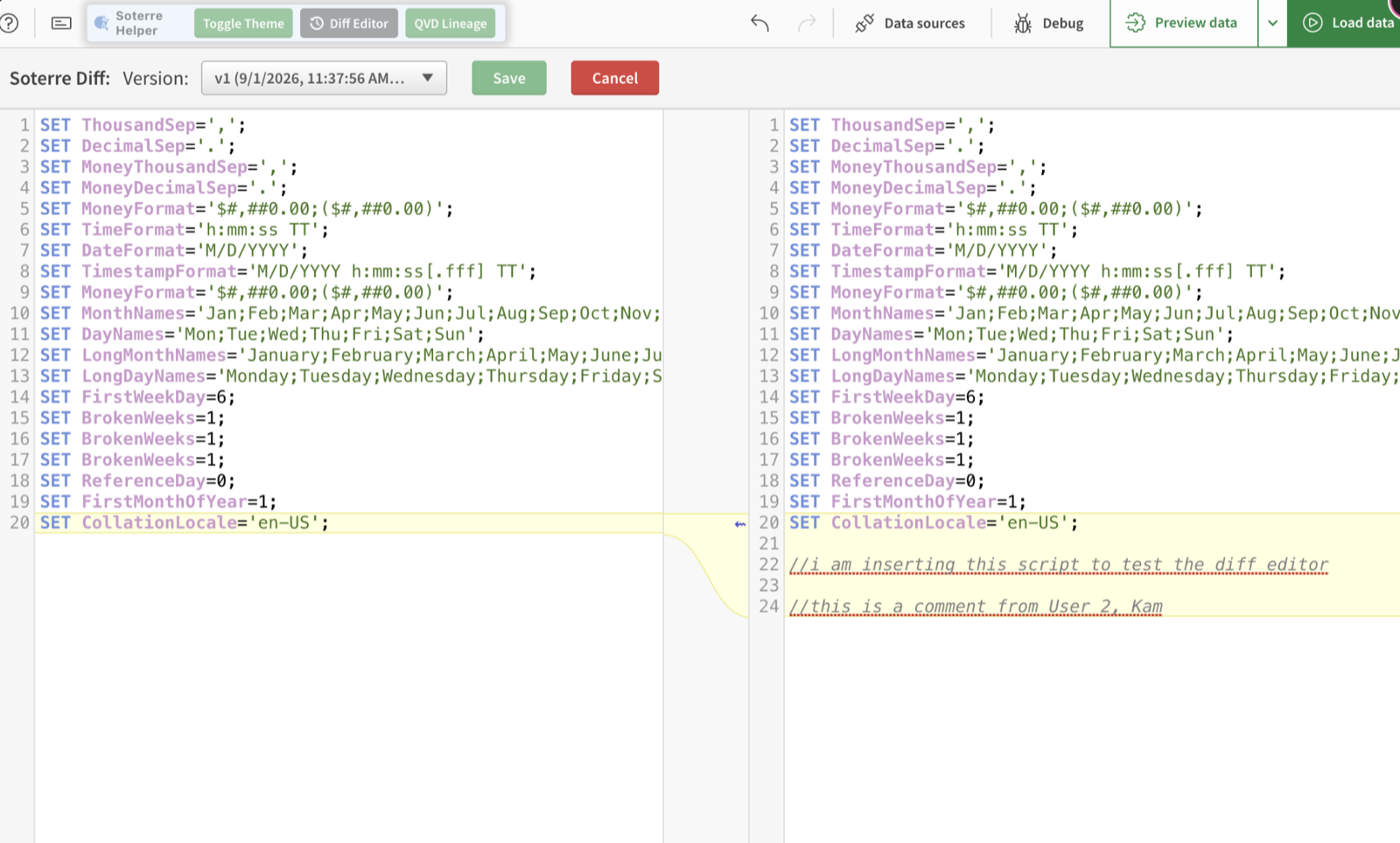
Load script
In the Data Load Editor click Diff Editor. The left pane is the current section, the right pane the same section from the Soterre version selected in the dropdown. Revert chunk arrows copy blocks from the right into the current script; Save writes it to the app.
In Power BI the viewer compares the visuals of a report page.
Open the viewer
Open the report in the Power BI service and click Diff Editor in the report toolbar — the button the Helper adds next to Global Search.

Pick the version to compare with
The timeline across the top holds every Soterre version of the report (v1, v2 … and Current state). Click a version; the left pane stays the current page, the right pane switches to that version. Ctrl + wheel zooms the timeline, dragging scrolls it.
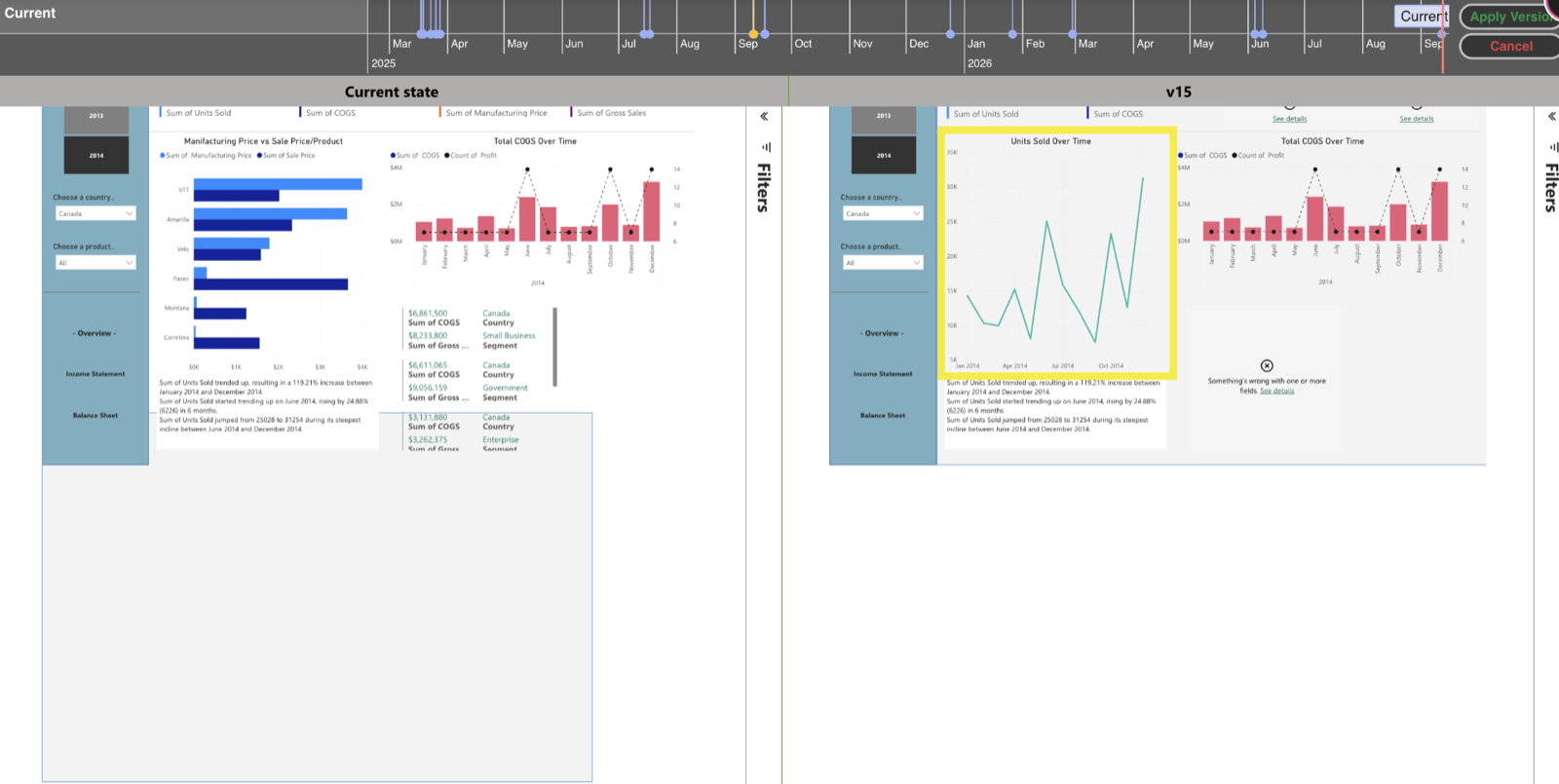
Review and merge
Visuals that differ are highlighted. Click one for View/Merge Changes and Apply Merge to transfer its properties to the current page, or Apply Version to take the whole version. Cancel closes the viewer without touching the report.
Requirements
The report must be versioned in Soterre and the Helper switched on — either with Turn on Soterre Helper in the popup header or with the same item in the extension icon menu.
Related
- Time Machine — flip through versions on one Qlik sheet.
- Timeline → Restore — bring the whole app or report back to a version.