
Installation
Install from the store
Install the extension from the Chrome Web Store. The same package runs in Microsoft Edge: open the store link in Edge and allow extensions from other stores when Edge asks.
Pin the icon
Click the puzzle-piece Extensions button in the toolbar and pin Soterre BI Ops Analytics. The icon is coloured on Qlik and Power BI pages and grey elsewhere.
Open the Options page
The Options page opens after the first installation. Later: click the icon on a Qlik or Power BI page and choose ☰ → Options, or right-click the icon → Options.
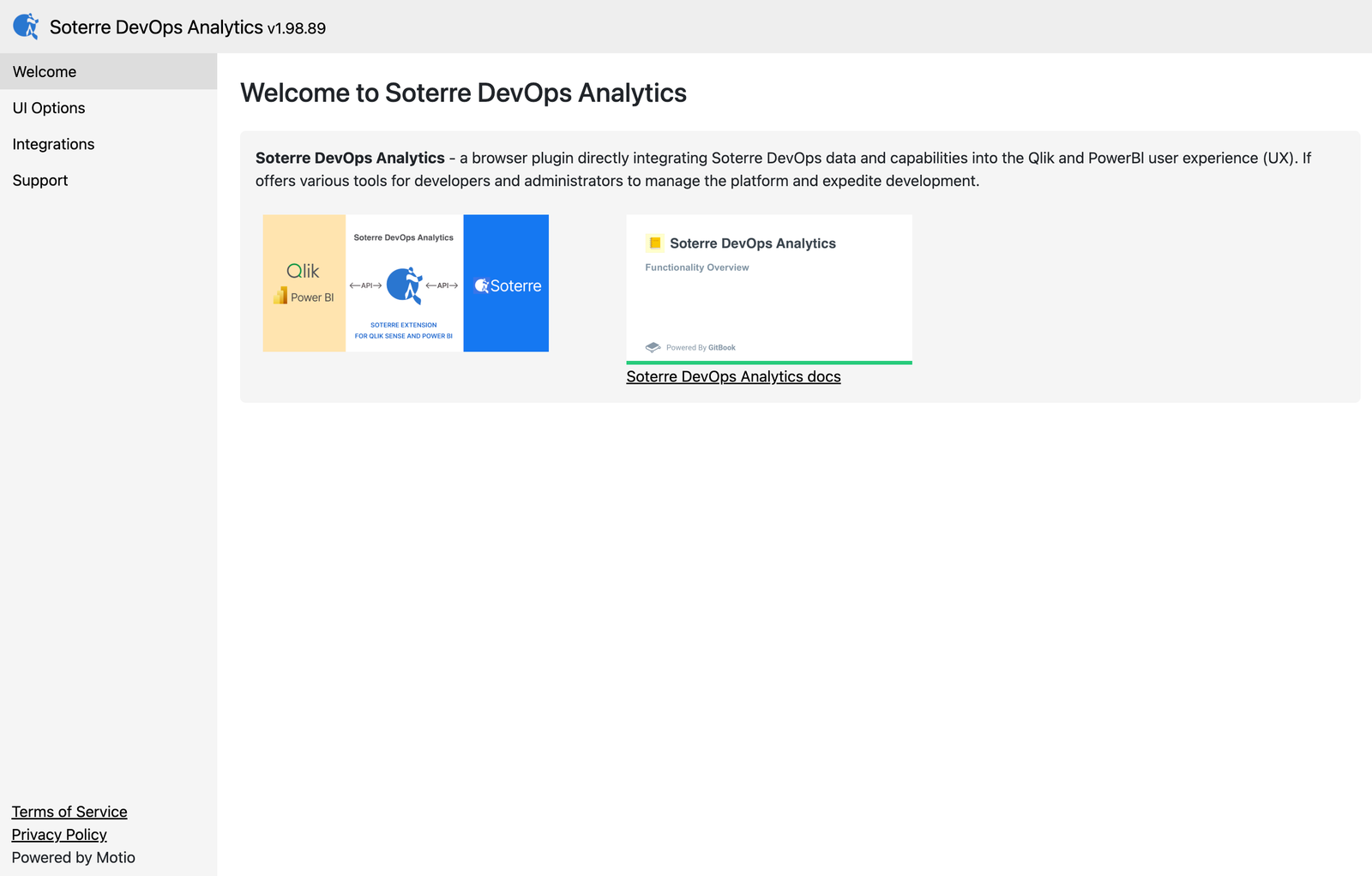
What to configure
| Step | Needed for | Page |
|---|---|---|
| Soterre host and API token | Timeline, Deployments, Import, Collisions, Lifecycle Insights, QVD Lineage, Time Machine, Diff Viewer, Global Search, Ask AI | Soterre Connection |
| Turn on Soterre Helper | The buttons the extension adds inside Qlik and Power BI | Soterre Helper |
| AI provider key | Ask AI buttons and Lifecycle Insights summaries | AI Integration |
| QSDA Pro server | QSDA Pro tab and flags in QSDA Calctime | QSDA Pro Integration |
Permissions
The extension asks for access to all sites because Qlik servers and tenants live on arbitrary domains; it activates only on pages it recognises as Qlik or Power BI. Other permissions: storage (settings), tabs and side panel (the UI), downloads (log files), scripting (the Helper controls).
Updating
The browser updates the extension automatically. Reload the open Qlik or Power BI tabs after an update. The version is shown in the header of the Options page; see the Changelog.
Managed installation
Administrators can force-install the extension with the standard Chrome and Edge policies and control the AI features through a managed policy.