Review note
Old documentation, kept for review. This page is retold in the new docs: Pre-deployment Checklist.
Pre-deployment Checklist
Pre-deployment Checklist brings best practices right to the BI interface to help ensure the compliance to the highest standards of performance before releasing analytics to production.
INFO
Available for Qlik Sense/Cloud and Power BI Web.
TIP
Make sure to have Soterre Helper turned on.
Find Pre-deployment Checklist
Qlik Sense/Cloud
Find Pre-deployment Checklist feature in Qlik App Overview > Soterre Helper:
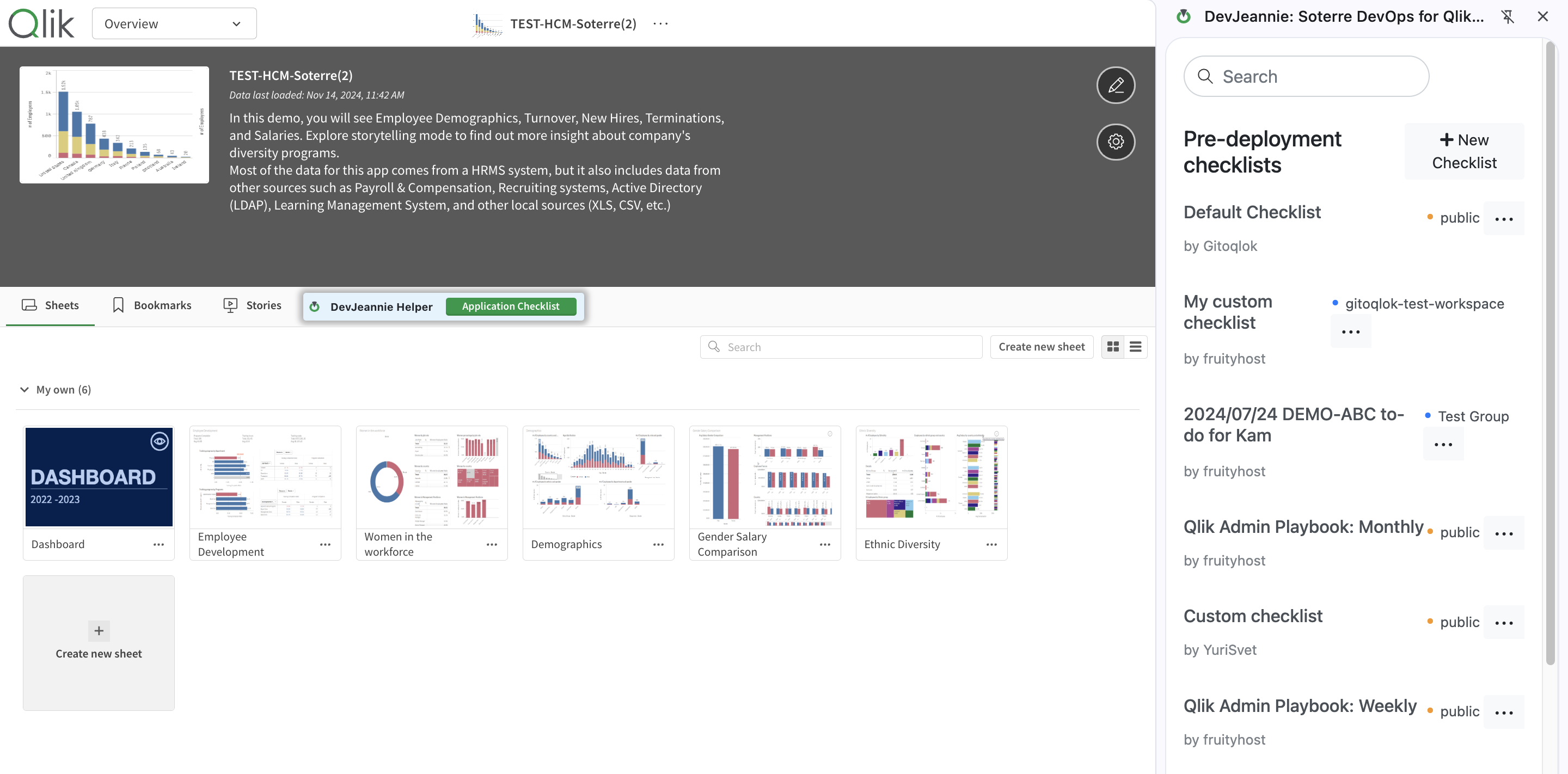
Soterre BI Ops Analytics: Pre-deployment Checklist for Qlik
PowerBI Web
From the Power BI Web report edit mode, find the Pre-deployment Checklist button from Soterre BI Ops Analytics:
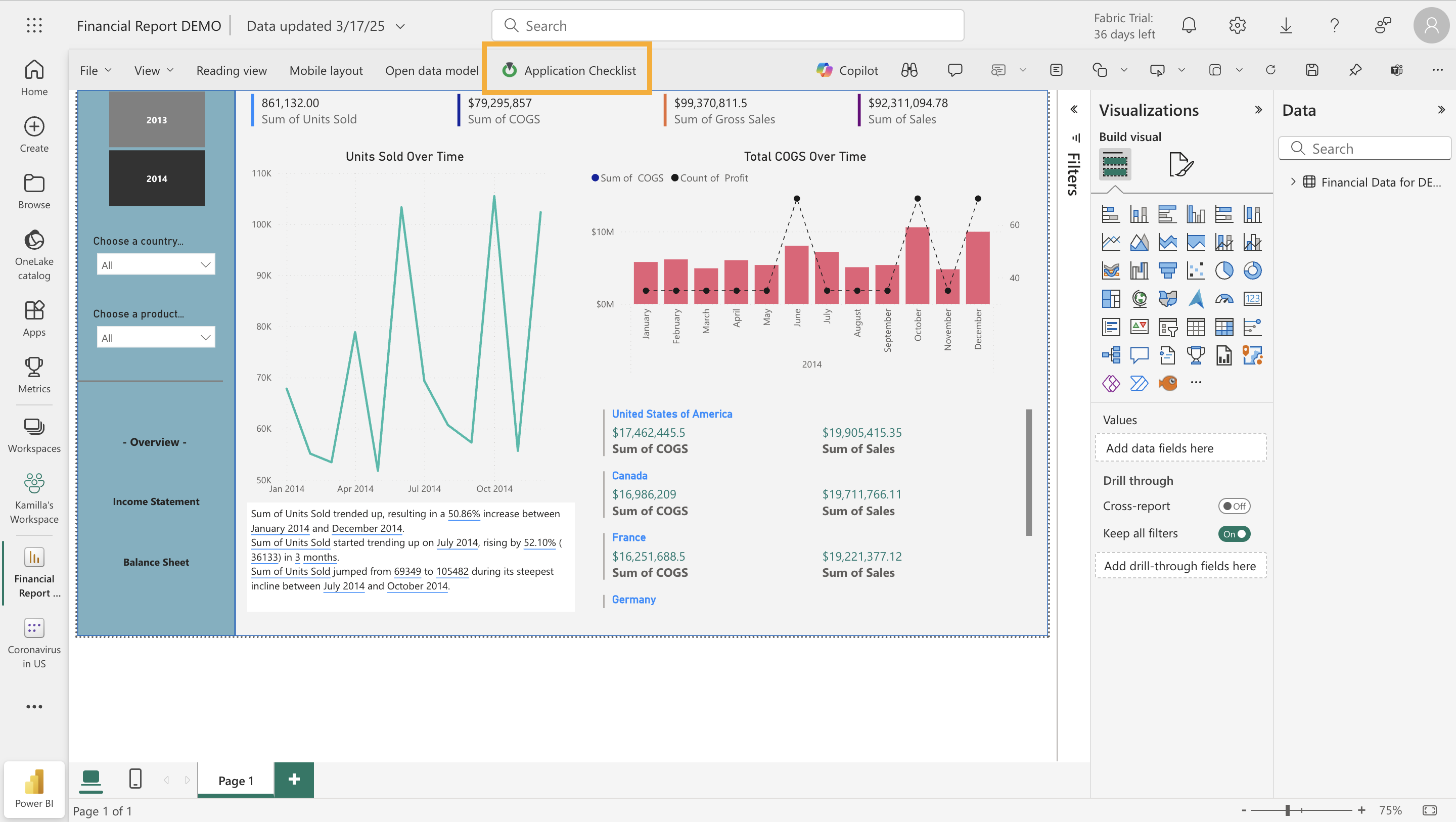
Soterre BI Ops Analytics: Pre-deployment Checklist for Power BI Web
Explore Pre-deployment Checklist
Qlik Sense/Cloud
The landing page displays the list of Pre-deployment checklists, that are visible to every Gitoqlok user.
At the top of the Pre-deployment checklists, you can find the Default Checklist by Soterre BI Ops Analytics, where our team has gathered some of the best practices and recommendations for Qlik developers to review before deploying an application.
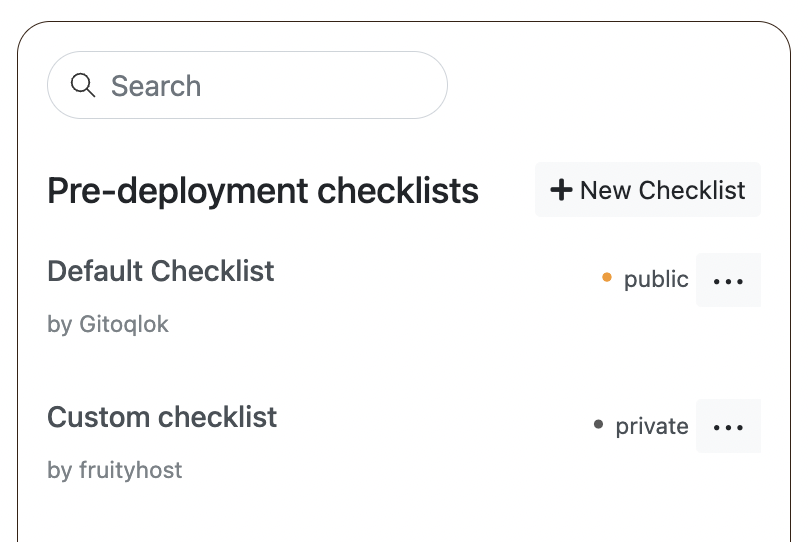
Soterre BI Ops Analytics: Pre-deployment Checklist
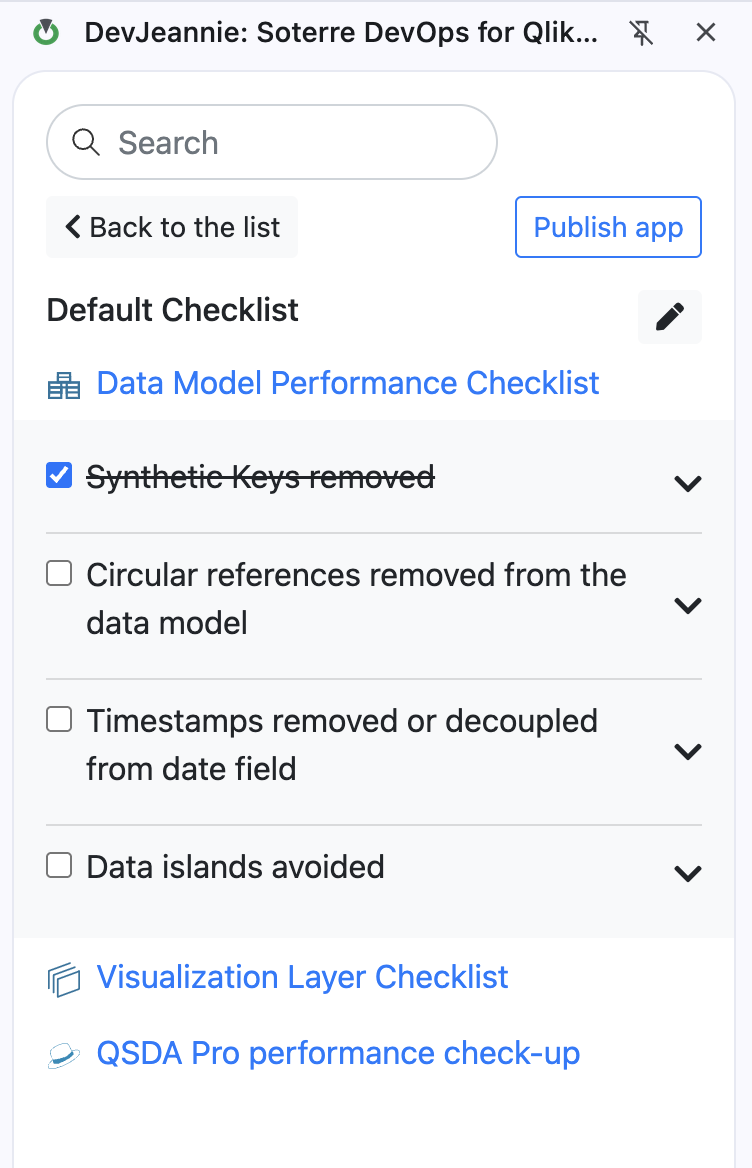
Default Checklist by Soterre BI Ops Analytics
Each checklist is formatted to represent the hierarchical view: Section > Item > Description. You can mark each checklist item as completed. Once each item within the checklist is marked as done the section highlights green.
To open the links in the description press Ctrl + click on the link.
PowerBI Web
The landing page displays the list of Pre-deployment checklists, that are visible to every Power BI user.
You can find the Default Checklist by Soterre BI Ops Analytics, where our team has gathered some of the best practices and recommendations for PowerBI developers to review before deploying a report.
Each checklist is formatted to represent the hierarchical view: Section > Item > Description. You can mark each checklist item as completed. Once each item within the checklist is marked as done the section highlights green.
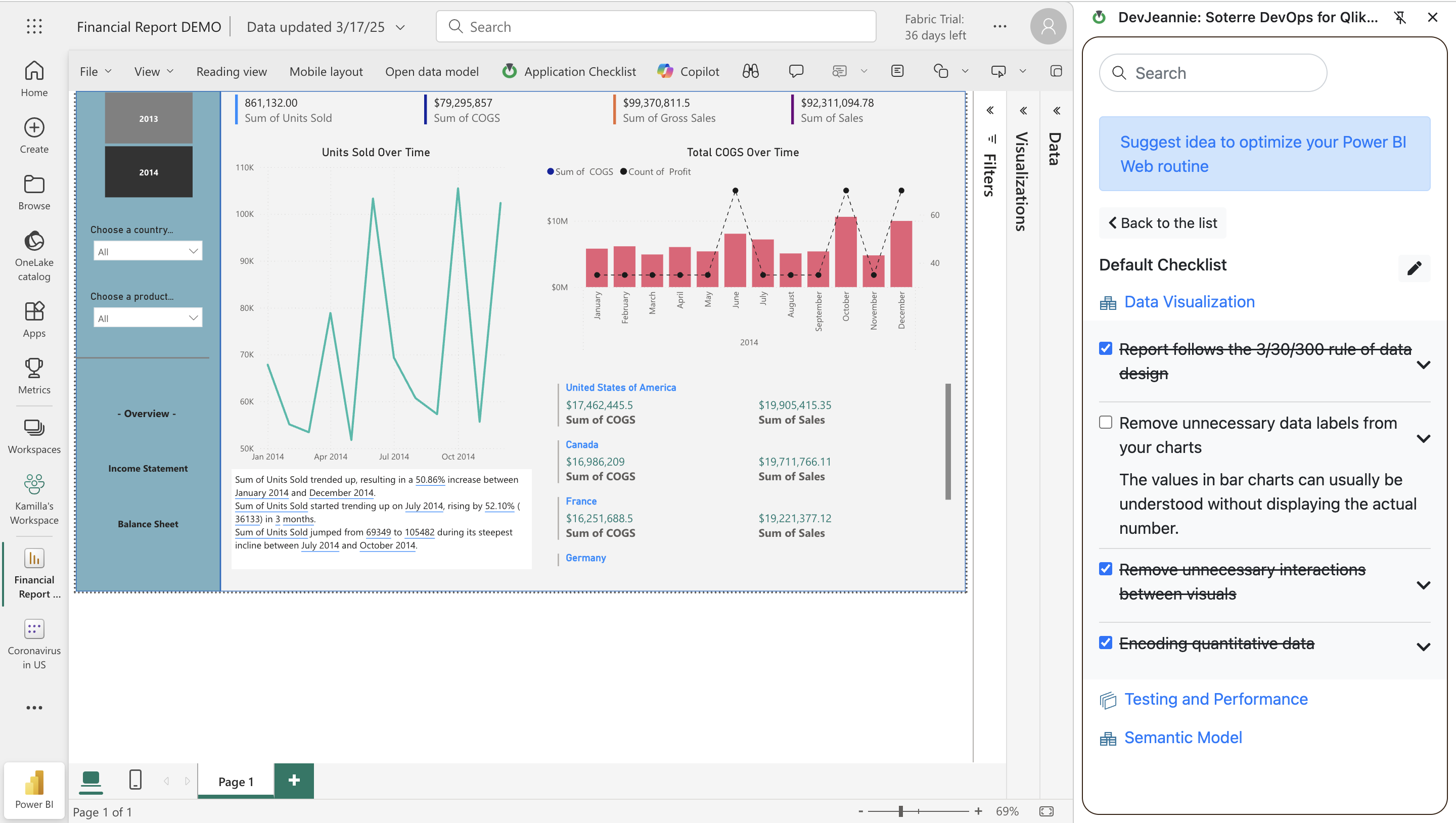
Soterre BI Ops Analytics: Pre-deployment Checklist for PBI Web
To open the links in the description press Ctrl + click on the link.
Create a private custom checklist
Qlik Sense/Cloud
- Find the
New Checklistbutton on the Pre-deployment Checklist landing page. - Enter your checklist components. Make sure to write up concise item names and neat descriptions.
- Add more sections and items within sections. Change section order up to your convenience.
- Add QSDA Pro performance check-up. If you add this option your checklist users will be able to integrate QSDA Pro into Soterre BI Ops Analytics to execute application performance check-up.
- Click
Saveto save your custom checklist locally. This action makes your custom checklist visible to you only.
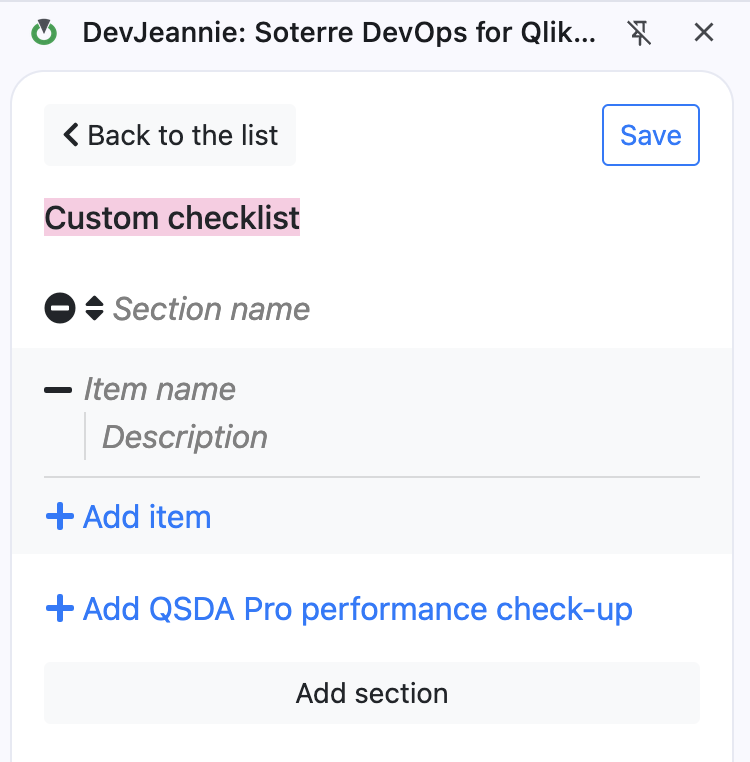
Soterre BI Ops Analytics: Create Apps Checklist for Qlik
PowerBI Web
- Find the
New Checklistbutton on the Pre-deployment Checklist landing page. - Enter your checklist components. Make sure to write up concise item names and neat descriptions.
- Add more sections and items within sections. Change section order up to your convenience.
- Click
Saveto save your custom checklist locally. This action makes your custom checklist visible to you only.
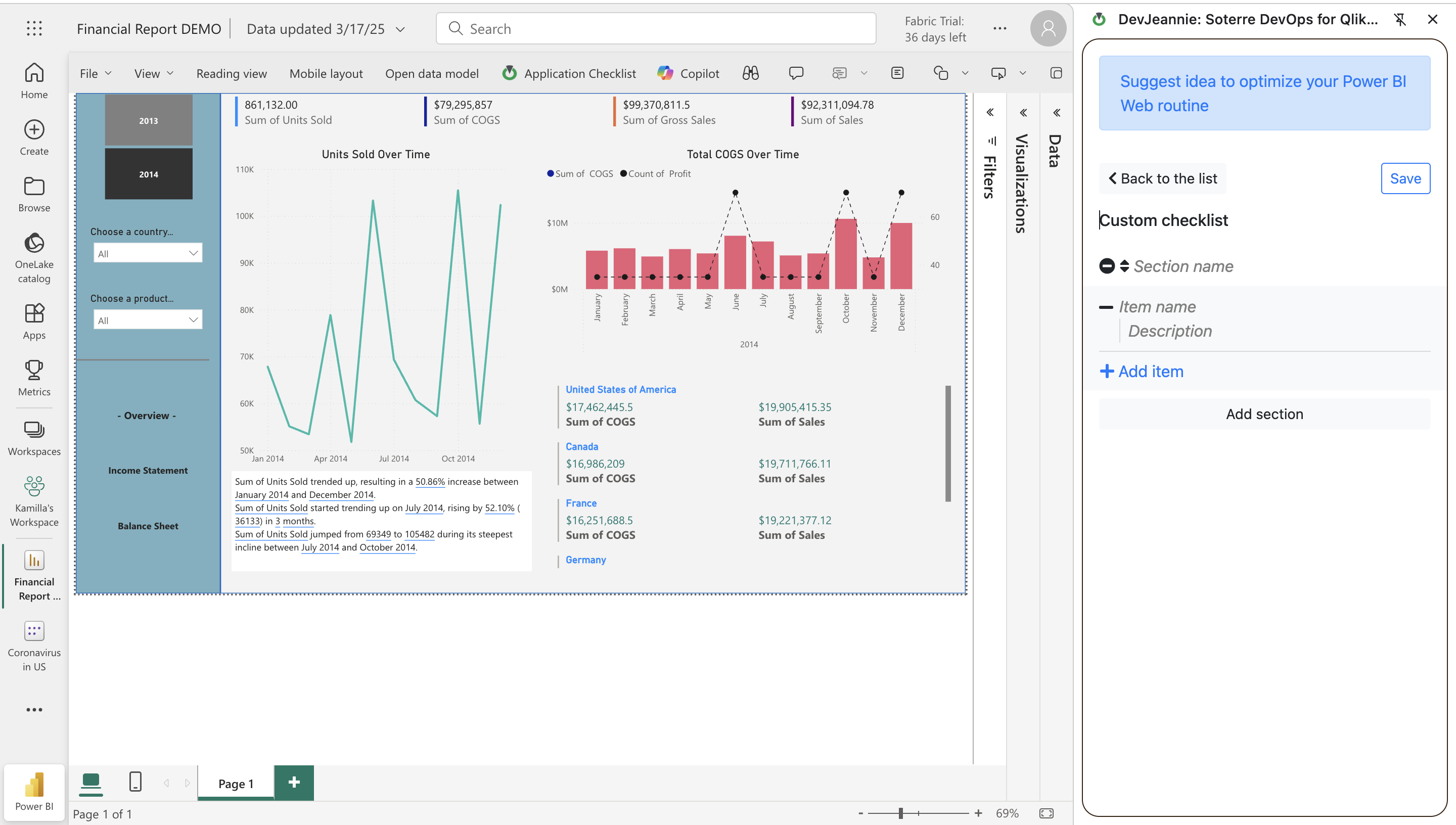
Soterre BI Ops Analytics: Create Pre-deployment Checklist for PBI Web
Publish your app through Apps Checklist
Qlik Sense/ Cloud
Once you have ensured the consistency of your application with the checklist components you can publish your application right in the side panel:
- Choose a space
- Give your app a name
- Enter the description
- Check out Tags Manager notifications for publishing sheets
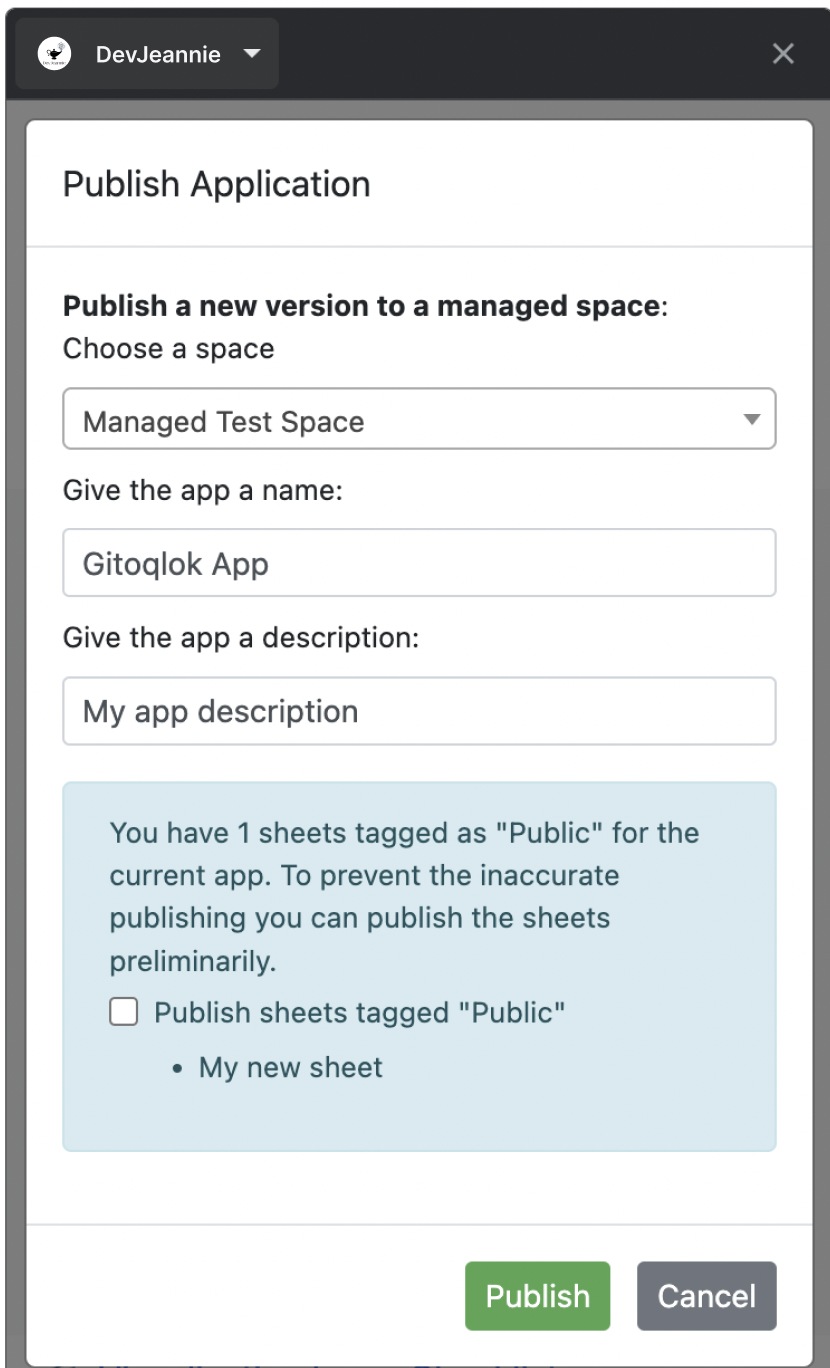
Pre-deployment Checklist: Publish App